
Placing events precisely on the timeline
For events that need to land at a specific moment in the audio — a thunderclap before a line, a scene-change projection trigger, a Cut that buttons exactly on the last note — the Waveform Editor lets you place them with sample-level precision.
How to place an event
- Open the song's Waveform Editor.
- Add or select the event you want to place.
- Drag the event's start handle (and end handle, where applicable) to the exact moment on the waveform.
- Save.
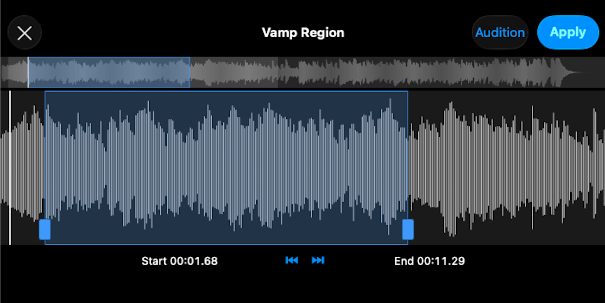
What you can set precisely
- Start time of any event.
- End time of events that span a range — Cut, Vamp, Skip.
Notes
- Visual reference matters. The waveform shows you the audio's amplitude. Drop a thunderclap at a silent moment before a vocal entry. Land a Cut on the precise downbeat where the song should button.
- Cut and Vamp benefit most. Their start and end times define where playback loops or stops — small misalignments are very audible. Use the Waveform Editor for both.
- Zoom in for detail. Pinch on iPad or iPhone, or use the + / − buttons on Mac.
- Different Audition modes. The Audition button plays back different things depending on what you're editing — a song's start, an event's range, an SFX clip's contents. A dedicated article will cover the modes in detail.