
Adding events
An event is one item in your cue list — it might change mic states, play a sound effect, fire an OSC trigger, or shape the timeline. The flow for adding one is the same whether you're working in a scene or a song.
How to add an event
- Open the Event List for the scene or song.
- Tap + at the top right of the list.
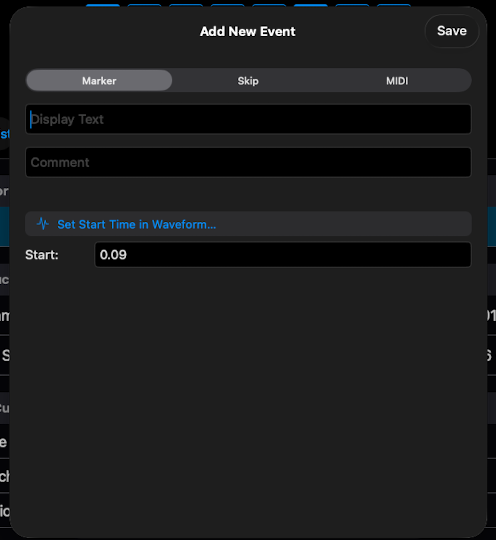
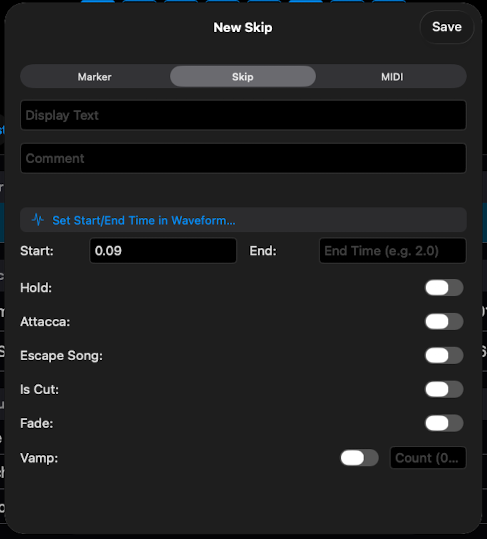
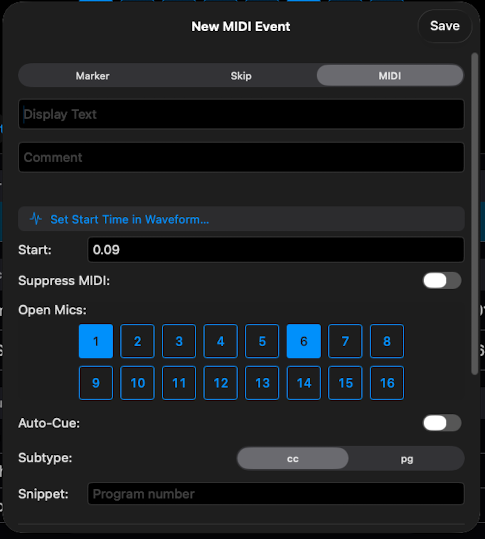
- Choose the event type (Marker (locator), Skip (Conductor Cue — covers Hold, Cut, Vamp, Escape Song, Attacca), MIDI (covers mic toggles, audio, and OSC)).
- Set the event-specific parameters — channel, audio file, OSC address, timestamp, etc.
- Save.
Notes
- Different types, different parameters. The editor adapts to the type you chose. A Locator cue just needs a name and Start Time; a Conductor Cue has a Start and End time and lets you select its specific behavior type; MIDI cues have several sections where parameters can be set for muting/unmutng mics, adding audio or a command for an OSC trigger.
- Timestamp on songs. New events in songs need a position on the timeline. Either type a timestamp directly or use the Waveform Editor to position it accurately.
- Position in scenes. New events in scenes land after the current active event or at the end of the list. Drag to reorder if needed.