
Selecting the audio portion for a SFX
When you create a sound-effect (SFX) event, you pick an audio file. The Waveform Editor lets you choose which portion of that file actually plays — useful when your source has silence at the head, a count-in, or you only want a snippet.
How to select the playable portion
- Open the SFX event for editing.
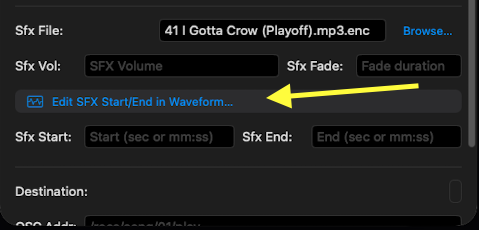
- In the SFX section, tap Edit SFX Start/End in Waveform....
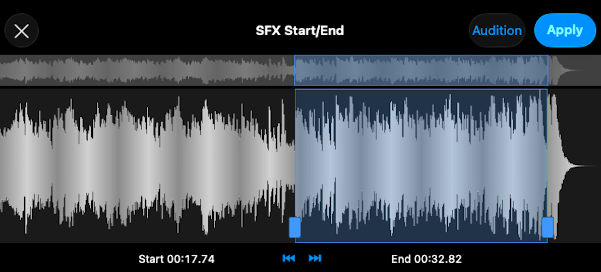
- Drag the start and end handles to define the portion that plays.
- Tap Audition to preview.
- Apply, then Save.
Notes
- The audio file is unchanged. ShowPlayer plays only the selected portion at fire time. The original file stays as-is.
- Trim percussive hits aggressively. For a drum kick, a sword unsheathe, a slap — get the start of the SFX exactly on the moment it should hit. Even a few milliseconds of leading silence makes a cue feel late.
- Same workflow for ambient SFX. A rain track, a crowd noise, a distant thunderstorm — pick a clean section that loops well, leave the rest off.