
Working with an existing Mic Map
A Mic Map connects your show's role names (Dorothy, Toto, Ensemble 3) to your mixer's channel numbers. Pre-built shows from the Audiohost Show Server arrive with a default Mic Map. This article covers what you can change without rebuilding it.
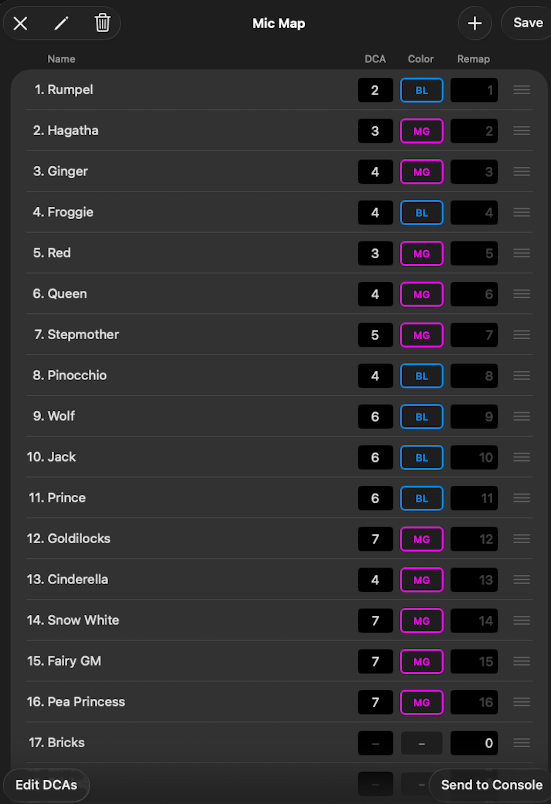
What you can change
- Reorder roles by dragging. Use the drag handle at the right of each channel. After Save, all MidiEvents update automatically to reflect the new channel assignments.
- Rename roles. Tap a role name and change it. Renaming relabels the role on screen and in the cue list — it doesn't change which physical channel the role fires on.
- Remap channels. Type a destination channel number on the right side of a row. Use this to combine multiple roles onto the same mic, redirect a role to a different physical channel on the board, or disable a channel by setting its remap to 0.
- Send names to the scribble strip. On Behringer X32 and Midas M32 mixers, push the role names to the channel scribble strips so what's visible on the board matches what's in your show.
Notes
- Renaming is not reordering. Renaming a role doesn't change its underlying channel. If you want a different cast order, use drag-to-reorder or remap — don't try to swap names.
- Remap to 0 silences a channel. No mute or unmute MIDI gets sent. Useful when a cast member is out and their mic shouldn't move at all.
- Remap can also redirect. A role mapped to channel 7 can be sent to channel 12 instead — useful when the board layout differs from what the show was built for.