
Creating a Mic Map
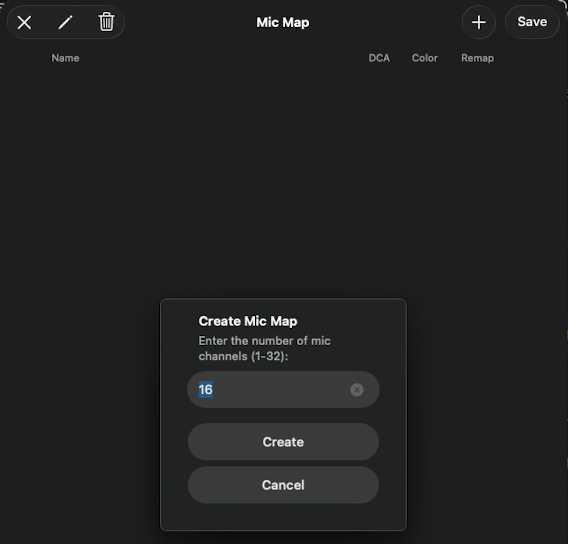
For a show that doesn't have a Mic Map yet — a custom show you're building from scratch, or one delivered without one — you create the map from the Mic Map screen.
How to create a Mic Map
- Open the Mic Map for the show.
- Tap + at the top right.
- Enter the number of channels (1–32).
- Tap Create. ShowPlayer creates the map with default channel names — just the channel numbers.
- Rename channels to your role names.
Notes
- Pick a channel count that matches your hardware. A 16-channel show on a 32-channel X32 is fine. A 24-channel show on a 16-channel board needs re-routing — better to plan the count up front.
- Default names are numbers. Rename them to your role names. On X32 and M32, the scribble strip on the board picks up these names directly when you push channel names from the Mic Map.
- You can still grow it later. If your role count changes during tech, add channels instead of starting over.