
Adding a new scene
A scene is a slot in your playlist for cue events that don't need backing audio — mic state changes, sound effects, snippet recalls. Add one whenever the show needs a moment of mic or audio activity between songs.
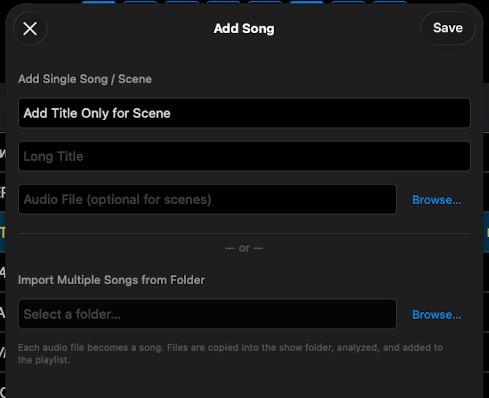
How to add a scene
- Open the Playlist.
- Tap + to add a new item.
- Without selecting an audio file, confirm. ShowPlayer creates a scene at that position.
- Open the scene and add events — mic mutes, SFX, OSC triggers, snippet recalls.
Notes
- Where scenes go. Drop them between songs to handle dialogue mic states, transition SFX, or any moment you need to fire cues without audio playing.
- Reorder freely. Scenes can be moved in the playlist by long-tap-and-drag.
- Adding after a specific scene. Tapping a scene in the playlist opens it (Event list view) rather than selecting the row in place. To position a new scene after a particular one, open that scene, tap the playlist link to return to the playlist, then immediately tap +.