
Adding a new song
A song is a playlist item with a backing audio file and its own timeline for cue events. Adding one means picking the audio file you want to use.
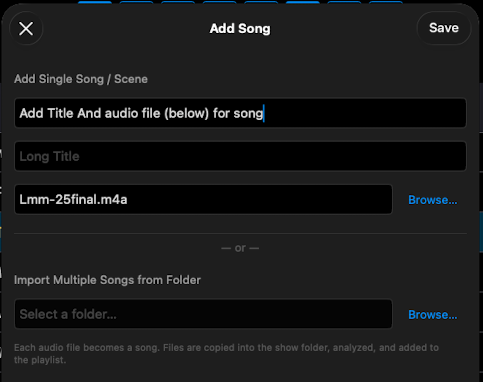
How to add a song
- Open the Playlist.
- Tap + to add a new item.
- Select the audio file you want to use as the song's backing track.
- Confirm. ShowPlayer creates the song with the audio attached and opens it for editing.
Notes
- Audio is set at creation. When you add a new playlist item with an audio file, you get a song. Without an audio file, you get a scene. The audio is locked in once the song is created — to use different audio later, delete the song and create a new one with the new file.
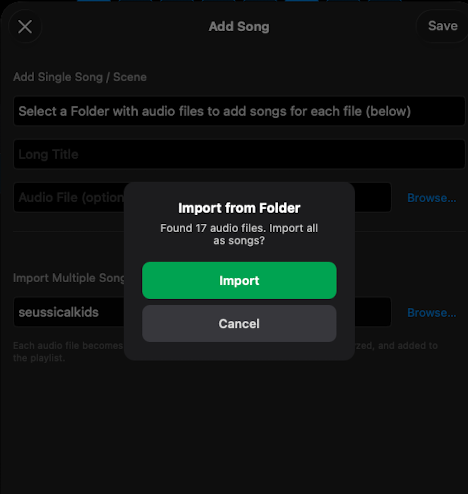
- Where audio can come from. Audio files (and folders for bulk import) can be picked from anywhere the device's file browser can reach — on-device storage, iCloud Drive, Dropbox, OneDrive, or any other location that appears in the Files app on iOS/iPadOS or in the file dialogs on Mac.
- Multiple songs at once. In the + flow, choose a folder of audio files instead of a single file. ShowPlayer scans the folder and creates one song per audio file in a single batch.
- You can't add audio to a scene later. A scene is timeline-less by design. If you've created a scene and realize you need it to be a song, add a new song with the audio you want and move events over.
- Sound effects without a song. You don't need a song to play sound effects. Add SFX events to a scene — they play on demand without a backing timeline.
- Adding after a specific scene. Tapping a scene in the playlist opens it (Event list view) rather than selecting the row in place. To position a new song after a particular scene, open that scene, tap the playlist link to return to the playlist, then immediately tap +.