
Loading an existing show from your device
Once a show is on your iPad or iPhone — whether you loaded it from the Audiohost Show Server or built it yourself — it stays in your local show list. Opening it for rehearsal, tech, or performance just means picking it from that list.
How to open it
- Open ShowPlayer Pro.
- The last show that was open on the device will open.
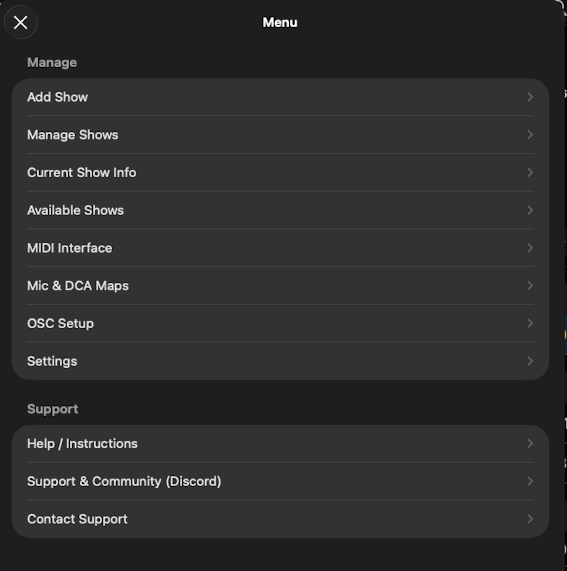
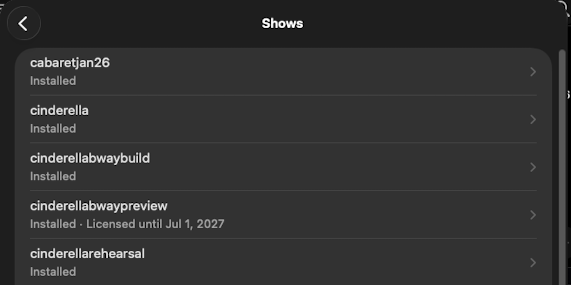
- To load a different show that's already on your device, tap the menu icon at the top left, then tap Manage Shows. A list opens that shows every show currently on the device.
- Tap the show you want to work on. ShowPlayer loads its playlist, audio, and cue events.
That's it — no internet needed once the show is local.
Notes
- Switching between shows. If you have more than one show on the device, switch between them from the Manage Shows menu at any time.
- Removing a show. Open Manage Shows menu, select the show, and tap Remove. There's no Undo. If you're removing a server-loaded show, keep your show code somewhere safe — you'll need it to pull the show down again.