
Loading a show from the Audiohost Show Server
When you've got access to a pre-built show package — your tracks, mic map, and cue list bundled and ready to run — the package lives on the Audiohost Show Server. You'll receive a show code with your access. That code is what pulls the package onto your iPad or iPhone.
How to load it
- Open ShowPlayer Pro.
- From the show list, tap Load Show.
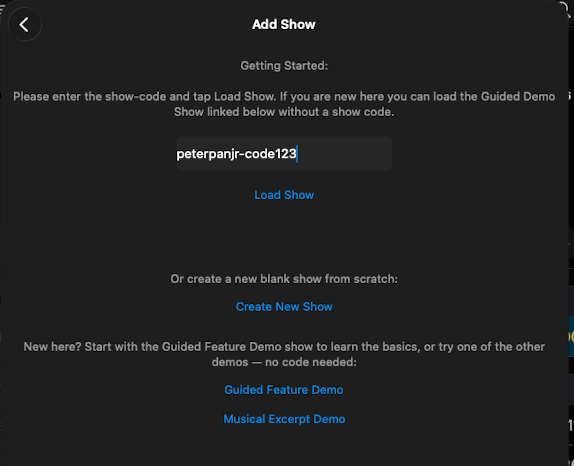
- Enter your show code.
- Confirm. ShowPlayer downloads the full package to your device — audio files, mic map, and cue events.
Once the show is on the device, it works fully offline. The network is only needed for the initial load.
Notes
- Where the show code comes from. The code is sent to you when your show package is ready. If you've ordered a package and don't have a code yet, reach out to support — we'll track it down.
- Storage. A typical show is between 150 and 400 MB. Make sure you have room on the device before loading.
- Backup device. Use the same show code on every iPad or iPhone you want to run from. iPhone makes a great backup — most operators already have one in their pocket, and it runs the show with the same capability as the iPad.
- Reloading. Your show code stays valid. If you ever lose the show or move to a new device, you can pull it down again.
- No show code? Try a demo. The Add Show screen also offers several demo shows that ship with ShowPlayer. They load instantly with no code or network needed — useful for exploring the app, training a new operator, or testing your hardware setup before the real show package arrives.