
ShowPlayer Pro Fires Lighting and Projection Cues from iPad
ShowPlayer Pro is the iPad app for school and community theater teams that don't have a tech department backing them up. One person, one device — track playback, mic automation, and a workflow designed to support teams who are still finding their footing, instead of overwhelming them with industry-grade complexity.
What's new: ShowPlayer's reach now extends past the iPad. Most of what's already in your booth — lighting consoles, video and projection systems, media servers, almost any modern theater rig that speaks the same network language ShowPlayer does — can be triggered from the same timeline you use to play your tracks and mute your mics. Lighting and projection are two of the most common examples, and the ones we'll walk through here. They're not the limit of what's possible; they're the easiest places to start.
Same iPad. Same timeline. Same workflow. You drop the new cue into your show the same way you'd drop a sound effect or a mic mute, and ShowPlayer fires it at the right moment.
Lighting and projection, in practice
Take lighting. ShowPlayer Pro now sends triggers to ETC Eos consoles — Ion, Gio, Element, ColorSource, Nomad — and most other consoles that accept network commands. Your lighting designer programs the look in the console exactly the way they always have. ShowPlayer fires the cue at the beat in the music, the moment in the scene, where it should land.
Take video and projection. Whatever's playing back the video — QLab on a Mac, or a cross-platform projection tool on PC — ShowPlayer can advance the cue stack at the right beat. The shadow puppet appears on the downbeat. The thunderclap projection lands a frame before the actor reacts. The "morning in the kingdom" image swaps in cleanly on the scene change instead of three seconds late.
You no longer need a person at the lighting console and a person at the projection laptop watching the music director and counting bars. The timeline does it.
Why it stays simple
In ShowPlayer, a lighting trigger is just another event. It sits in the same event list as your mic mutes and your sound effects. You add it the same way (tap +, choose the type, save). You edit it the same way (swipe left, change a parameter). You delete it the same way.
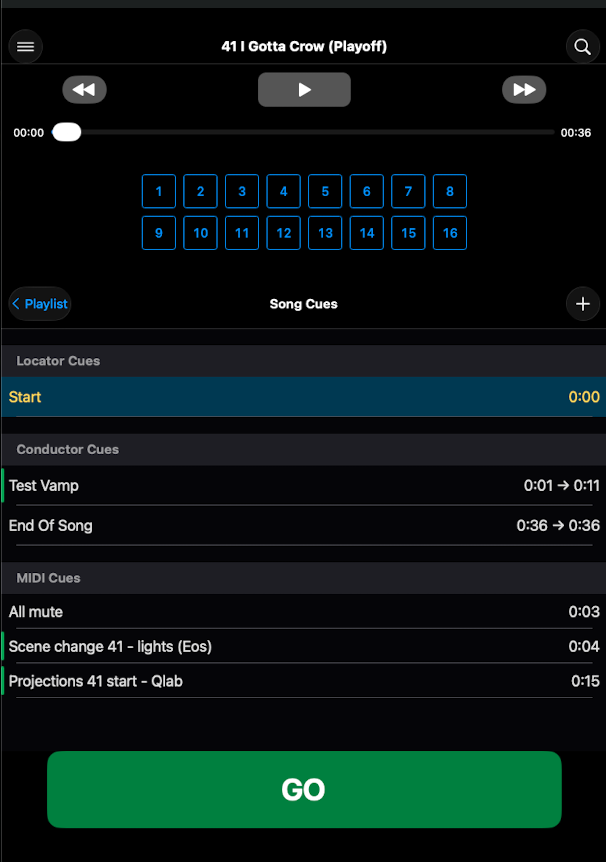
There's no "integration mode." No second cue stack to maintain. No mental context switch between "I'm running the show" and "I'm running the integration." If you can place a mic mute on the timeline, you can place a lighting cue.
Works with the show you already have
If you're running a pre-built ShowPlayer show, you don't start from a blank slate. Your tracks and mics are already in place. To add lights, you drop a trigger event at the moment you want the cue to fire and point it at your lighting console. To add projection, the same event pointed at your video playback machine.
For new shows you build from scratch, the same building block goes in alongside everything else. After the first one, you stop thinking of it as a separate feature.
And one quiet thing for PC users
A lot of theater software conversations end with "…and you'll need a Mac for that." For schools and community groups that are running on the PCs they have — donated, district-issued, already paid for — that's a whole separate budget conversation that often kills the project before it starts.
Because ShowPlayer Pro runs on iPad and reaches the rest of your gear over the network, the rest of your gear can run on anything. Keep your PC. Run video playback on what you already have. Use any OSC-capable lighting console. Connect them to ShowPlayer over the same Wi-Fi or wired network the iPad is already on.
You don't have to switch the booth to Mac to get a modern, integrated show. You add an iPad.
The bigger picture
ShowPlayer Pro isn't joining your show-control stack. It's reducing it.
A production that previously needed an audio operator, a lighting operator following the music director, and a projection operator counting bars now needs one person running ShowPlayer. The lighting and projection cues are baked into the show — placed once, fired automatically, and follow the conductor through holds, vamps, and pickups just like every other cue does.
You don't get this by adding more software to the booth. You get it by letting the one tool you're already using reach the others.
Want to see this with your show?
ShowPlayer Pro is free to download with a Guided Demo. Or book a 20-minute Fit Check and we'll look at your specific lighting console and projection setup — what's already there, what would need to talk to what, and where the easy wins are.